Appearance
react 基础-组件的三大核心
state
state 是用来记录数据,并触发更新页面显示
js
function Counter() {
  const [count, setCount] = React.useState(0);
  function handleClick() {
    setCount(count + 1);
  }
  return <button onClick={handleClick}>点击了{count}次</button>;
}- 先从 React 引用 useState(), React.useState(初始值) 返回的是一个数组,第一个是当前的 state(count),第二个是更新 state 的对应函数(setCount),命名随意,一般第二个都是在第一个的基础上加上一个 set
- 初始值可以是任何形式的值,比如数字、字符串、数组、bolean 值、对象等,一般初始值要跟最后要设置的值保持一个类型
- 当要改变 count 的值时,调用 setCount 来设置
- setCount 是一个异步执行了,即调用了 setCount 后,不会更改现有渲染中的变量 count,但会请求一次新的渲染。也就是 setCount 后去获取 count 的值,是还不会变的。要监控更新完成了,可以用 Hook useEffect()去监控 count。
- state 是数组和对象时,不要直接修改一个对象或者数组,而要为它创建一个新对象或者数组,并通过把 setXX 设置成这个新对象或者数组来触发重新渲染。一般可以通过{...state}来生成新对象,数组的话可以通过[...arr]、filter()、slice()、map()来返回一个新数组
- setCount 会引起重新渲染,当重新渲染一个组件时,React 会再次调用组件函数。
- setCount(count=>count+1)可以传入一个函数,可以多次更新 state
props
- 每个组件对象都会有 props(properties 的简写)属性
- 组件标签的所有属性都保存在 props 中,通过标签属性从组件外向组件内传递变化的数据,props 变化了,组件也会重现渲染。
- props.children 这个可以拿到组件内的标签体内容
- 组件内部不要修改 props 数据
js
function MyCompont(props) {
  console.log("MyCompont props", props);
  return (
    <div>
      <h1>props_传参</h1>
      <Person name="小李" age={18} hobbys={["写代码", "打游戏"]} />
      <Person name="小王" age={20} hobbys={["看电影", "打篮球"]} />
    </div>
  );
}

function Person(props) {
  console.log("Person props", props);
  const { name, age, hobbys = [] } = props;
  return (
    <div>
      {name}---{age}-- 爱好:
      {hobbys.map((item, index) => {
        return (
          <span>
            {item}
            {index !== hobbys.length - 1 ? "," : ""}
          </span>
        );
      })}
    </div>
  );
}js
    <script type="text/babel">
      /* 此处需要写babel type="text/javascriptt" 因为之前是js代码,但现在写的不是js而是jsx*/
      /* 1.定义函数组件 */
      function MyCompont(props) {
        console.log("MyCompont props", props);
        const [count, setCount] = React.useState(0);
        function handleClick() {
          setCount(count + 1);
        }
        return (
          <div>
            <h1>props_传参2_其中一个组件更新后,其它的组件也跟着更新</h1>
            <Counter count={count} onClick={handleClick} />
            <br />
            <Counter count={count} onClick={handleClick} />
          </div>
        );
      }

      function Counter(props) {
        const { count, onClick } = props;
        return <button onClick={onClick}>点击了{count}次</button>;
      }

      const root = ReactDOM.createRoot(document.getElementById("root"));
      /* 2.将函数式组件渲染到页面上 */
      root.render(<MyCompont />);
</script>Context:传递 props 的另一种方法
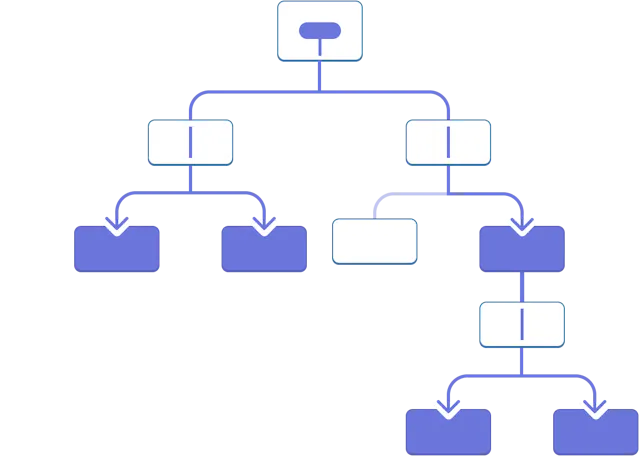
当需要在组件树中深层传递参数,传递 props 就会变得很麻烦。 最近的根节点父组件可能离需要数据的组件很远,状态提升 到太高的层级会导致 “逐层传递 props” 的情况。 Context 让父组件可以为它下面的整个组件树提供数据。
Prop 逐级透传的效果:
Context 传递
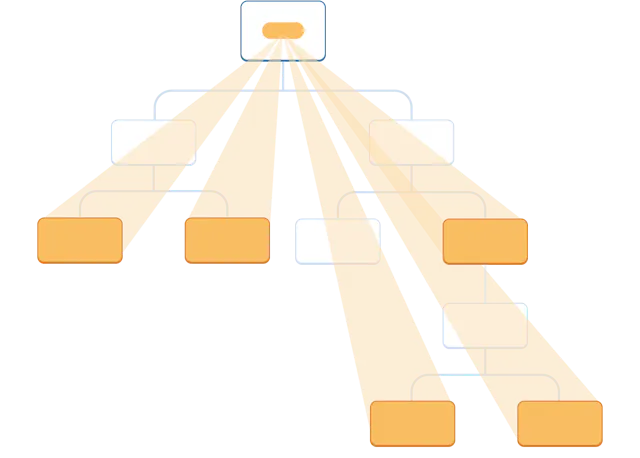
- 第一步,先使用 createContext 创建一个 Context
- 第二步,使用 Context.Provider 传递需要的值
- 第三步,在需要用的地方使用 useContext 接收值
js
    <script type="text/babel">
      /* 此处需要写babel type="text/javascriptt" 因为之前是js代码,但现在写的不是js而是jsx*/
      /* 1.第一步,先创建一个Context */
      const ThemeContext = React.createContext("red");

      /* 1.定义函数组件 */
      function MyCompont() {
        console.log("MyCompont in");
        const [themeColor, setThemeColor] = React.useState("red");
        // 更改主题颜色
        function onClickColor(color) {
          setThemeColor(color);
        }

        return (
          <div>
            当前h3标签颜色:{themeColor}
            <br />
            <button onClick={onClickColor.bind(this, "red")}>红色</button>
            <button onClick={onClickColor.bind(this, "green")}>绿色</button>
            <button onClick={onClickColor.bind(this, "yellow")}>黄色</button>
            <button onClick={onClickColor.bind(this, "blue")}>蓝色</button>
            <button onClick={onClickColor.bind(this, "skyblue")}>天蓝色</button>
            {/*2.第二步,使用Context.Provider传递值*/}
            <ThemeContext.Provider value={themeColor}>
              <Level1></Level1>
            </ThemeContext.Provider>
          </div>
        );
      }

      function Level1() {
        /*3.第三步,在需要用的地方使用useContext接收值*/
        const themeColor = React.useContext(ThemeContext);
        return (
          <div style={{ border: "solid 1px #ccc", width: "80%", margin: 20 }}>
            子组件1
            <h3 style={{ color: themeColor }}>子组件1的h3</h3>
            <Level2 />
          </div>
        );
      }
      function Level2() {
        const themeColor = React.useContext(ThemeContext);
        return (
          <div style={{ border: "solid 1px #ccc", width: "60%", margin: 20 }}>
            子组件2
            <h3 style={{ color: themeColor }}>子组件2的h3</h3>
            <Level3 />
          </div>
        );
      }
      function Level3() {
        const themeColor = React.useContext(ThemeContext);
        return (
          <div style={{ border: "solid 1px #ccc", width: "40%", margin: 20 }}>
            子组件3
            <h3 style={{ color: themeColor }}>子组件3的h3</h3>
          </div>
        );
      }

      const root = ReactDOM.createRoot(document.getElementById("root"));
      /* 2.将函数式组件渲染到页面上 */
      root.render(<MyCompont />);
</script>ref
当希望组件“记住”某些信息,但又不想让这些信息触发新的渲染时,可以使用 ref。
用法: const myRef = React.useRef(初始值) 初始值跟 useState 一样,可以是任何形式的值 useRef 返回一个这样的对象:
js
{
  current: xxx; // 向 useRef 传入的初始值
}ref 是一个普通的 JavaScript 对象,current 属性可以被读取和修改的
js
读取:myRef.current
修改:myRe.current = xxx一般使用场景:
- 用来做存储组件内的数据使用,比如一个定时器 id
- 用来访问真实 DOM
- 用来访问一个组件实例。需要借助 forwardRef api 和 useImperativeHandle 实现 ref 的传递和句柄暴露
一般不要在渲染过程中读取或写入 ref.current,读取 ref 的值时,一般加上判断 ref.current 是否为 null 的处理,如 if(ref.current)
js
    <script type="text/babel">
      /* 此处需要写babel type="text/javascriptt" 因为之前是js代码,但现在写的不是js而是jsx*/
      /* 1.定义函数组件 */
      function MyCompont() {
        const [startTime, setStartTime] = React.useState(null);
        const [now, setNow] = React.useState(null);
        const intervalRef = React.useRef(null);

        function handleStart() {
          setStartTime(Date.now());
          setNow(Date.now());
          clearInterval(intervalRef.current);
          intervalRef.current = setInterval(() => {
            setNow(Date.now());
          }, 10);
        }

        function handleStop() {
          clearInterval(intervalRef.current);
        }

        let secondsPassed = 0;
        if (startTime != null && now != null) {
          secondsPassed = (now - startTime) / 1000;
        }
        return (
          <div>
            <h1>ref_保存变量</h1>
            <h2>时间过去了: {secondsPassed.toFixed(3)}</h2>
            <button onClick={handleStart}>开始</button>
            <button onClick={handleStop}>停止</button>
          </div>
        );
      }

      const root = ReactDOM.createRoot(document.getElementById("root"));
      /* 2.将函数式组件渲染到页面上 */
      root.render(<MyCompont />);
</script>js
    <script type="text/babel">
      /* 此处需要写babel type="text/javascriptt" 因为之前是js代码,但现在写的不是js而是jsx*/
      /* 1.定义函数组件 */
      function MyCompont() {
        const inputRef = React.useRef(null);
        function handleClick() {
          console.log("handleClick inputRef.current", inputRef.current);
          // 链式用法
          inputRef?.current?.focus();
        }
        return (
          <div>
            <input ref={inputRef} />
            <button onClick={handleClick}>让输入框获焦</button>
          </div>
        );
      }
      const root = ReactDOM.createRoot(document.getElementById("root"));
      /* 2.将函数式组件渲染到页面上 */
      root.render(<MyCompont />);
</script>js
    <script type="text/babel">
      /* 此处需要写babel type="text/javascriptt" 因为之前是js代码,但现在写的不是js而是jsx*/
      /* 1.定义函数组件 */
      function MyCompont() {
        const playerRef = React.useRef(null);
        return (
          <div>
            <button
              onClick={() => {
                console.log("playerRef.current", playerRef.current);
              }}
            >
              打印ref
            </button>
            <br />
            <button onClick={() => playerRef.current.handleFunc("play")}>
              Play
            </button>
            <button onClick={() => playerRef.current.handleFunc("pause")}>
              Pause
            </button>
            <br />
            <br />
            <MyVideoPlayer
              ref={playerRef}
              src="https://interactive-examples.mdn.mozilla.net/media/cc0-videos/flower.mp4"
              type="video/mp4"
              width="250"
            />
          </div>
        );
      }

      const MyVideoPlayer = React.forwardRef((props, ref) => {
        const videoRef = React.useRef(null);

        // 暴露给父组件的方法
        React.useImperativeHandle(ref, () => ({
          handleFunc(status, param) {
            console.log("MyVideoPlayer handleFunc", status, param);
            switch (status) {
              case "play":
                videoRef.current.play();
                break;
              case "pause":
                videoRef.current.pause();
                break;
            }
          },
        }));

        return (
          <video width="250" ref={videoRef}>
            <source
              src="https://interactive-examples.mdn.mozilla.net/media/cc0-videos/flower.mp4"
              type="video/mp4"
            />
          </video>
        );
      });
      const root = ReactDOM.createRoot(document.getElementById("root"));
      /* 2.将函数式组件渲染到页面上 */
      root.render(<MyCompont />);
</script>例子
作业
html
<!DOCTYPE html>
<html lang="en">
  <head>
    <meta charset="UTF-8" />
    <meta http-equiv="X-UA-Compatible" content="IE=edge" />
    <meta name="viewport" content="width=device-width, initial-scale=1.0" />
    <title>作业</title>
    <style>
      @charset "utf-8";
      /* 样式重置 */
      h1,
      h2,
      h3,
      h4,
      h5,
      h6,
      header,
      hgroup,
      hr,
      input,
      li,
      ol,
      p,
      pre,
      td,
      textarea,
      th,
      ul {
        margin: 0;
        padding: 0;
      }
      ul,
      oll,
      li {
        list-style: none;
      }
      a {
        text-decoration: none;
        color: #333;
      }
      i,
      em {
        font-style: normal;
      }
      input,
      textarea,
      button,
      select,
      a {
        outline: none;
        border: none;
      }
      table {
        border-collapse: collapse;
        border-spacing: 0;
      }

      .todo-container {
        position: static;
      }
      .todo-wrap {
        width: 520px;
        margin: 20px auto;
        border: 1px solid #999;
        border-radius: 5px;
      }
      .todo-header {
        margin: 10px;
      }
      .todo-header input {
        outline: none;
        border: 1px solid skyblue;
        height: 40px;
        width: 500px;
        text-indent: 10px;
      }
      .todo-header input:focus {
        box-shadow: 0 0 10px 2px skyblue;
      }
      .todo-main {
        margin: 10px;
        border: 1px solid #999;
        border-bottom-width: 0;
        width: 500px;
      }
      .todo-main li {
        position: relative;
        border-bottom: 1px solid #999;
        height: 40px;
        width: 500px;
        line-height: 40px;
      }
      .todo-main li:hover {
        background-color: #ddd;
      }
      .todo-main li:hover button {
        display: inline-block;
      }
      .checkbox {
        margin-right: 10px;
        margin-left: 10px;
      }
      .btn {
        position: absolute;
        right: 10px;
        display: inline-block;
        padding: 5px 12px;
        text-align: center;
        line-height: 30px;
        font-size: 14px;
        color: #fff;
        background-color: red;
        box-shadow: inset 0 1px 0 rgba(255, 255, 255, 0.2), 0 1px 2px rgba(0, 0, 0, 0.05);
        border-radius: 4px;
      }
      .btn-hide {
        display: none;
      }
      .todo-footer {
        position: relative;
        margin: 20px 10px;
        height: 40px;
        width: 500px;
        line-height: 40px;
      }
    </style>
    <script>
      function onkeyDown() {
        const keycode = window.event.keyCode;
        if (keycode === 13) {
          alert("按下了回车按键 ");
        }
      }
    </script>
  </head>
  <body>
    <div class="todo-wrap">
      第14讲作业说明:<br />
      1.输入框输入内容,按确定添加一个要做的事项<br />
      2.点击每一个事项右边的删除按钮可删除对应事项<br />
      2.点击复选框切换完成/已完成,点击删除已完成就删除所有打勾的事项<br />
      <b>注:至少要分两个组件,顶部的输入框必须是一个独立的组件</b>
    </div>
    <div class="todo-container">
      <div class="todo-wrap">
        <!-- 头部输入框 -->
        <div class="todo-header">
          <input
            type="text"
            onkeydown="onkeyDown()"
            placeholder="请输入您的任务名称,按回车键确认"
          />
        </div>
        <!-- todo列表 -->
        <ul class="todo-main">
          <li>
            <label>
              <input type="checkbox" class="checkbox" checked />
              <span>吃饭</span>
            </label>
            <button class="btn btn-hide">点击删除</button>
          </li>
          <li>
            <label>
              <input type="checkbox" class="checkbox" />
              <span>睡觉</span>
            </label>
            <button class="btn btn-hide">点击删除</button>
          </li>
          <li>
            <label>
              <input type="checkbox" class="checkbox" />
              <span>打豆豆</span>
            </label>
            <button class="btn btn-hide">点击删除</button>
          </li>
        </ul>
        <div class="todo-footer">
          <button onClick="" class="btn">删除已完成的任务</button>
        </div>
      </div>
    </div>
  </body>
</html>