Appearance
4.3 IPN 其他功能
iPanel TV软终端APK支持的一些其他私有功能
4.3.1 字库
由于电视端apk编译时,android/app/build.gradle中没有引用字库(apply from: "../../node_modules/react-native-vector-icons/fonts.gradle")不能直接使用引入react-native-vector-icons用标准方式使用,可能对apk大小有影响。 icon字库查找映射字符信息网站:https://www.bejson.com/ui/font/
4.3.1.1 iPanel字库使用方法
- 1、首先要在theme文件里面(apk会去下载对应ttf文件到终端,可配置多个):themeList->imgFiles->Ionicons配置
- 2、RN应用上使用私有组件,并且属性要支持theme中imgKey引用。如IPNView组件设置state_bg.normal=font://?font=Ionicons&width=20&color=%23ffffff&text=xxx&font_size=18(font=Ionicons中Ionicons名字对应步骤1中theme中配置的,text可以用字库映射的“字符”指,也可以用映射的“Unicode”值)
- 3、升级20240229日以后的APK版本
参考用例:
    <IPNView
        style={{
            width: 100,
            height: 100,
            alignItems: 'center',
            justifyContent: 'center',
        }}
        state_bg={{
            theme: {
                normal:'font://?font=Ionicons&width=20&color=%23ffffff&text=\uF10B&font_size=18&bg=%2300000000'
            },
}}></IPNView>- 注:
- 1)text参数也可以用字库对应的unicode编码(如:\uxxxx),不区分大小写(官网推荐字库尽量使用unicode编码,字符名称可能显示不出来;公司icon字库使用都正常)。
4.3.1.2 react-native标准字库使用方法
- 1、首先要在theme文件里面(apk会去下载对应ttf文件到终端,可配置多个):themeList->imgFiles->FontAwesome配置
- 2、RN应用上用标准的字库引入对应theme配置的字库就能找到。
参考用例:
    import Icon from 'react-native-vector-icons/FontAwesome';//对应字库需要在theme中配置
    ....
    <Icon
        name={'check'}
        size={28}
        color={'#ffffff'}
/>- 注:
- 1)20240517发现APK编译本地theme文件方式(非在线下载),配置的互联网字库(FontAwesome.ttf等)文件,会识别不到。
4.3.2 渐变图
同state_bg.gradient对象属性设置是同一个功能。支持url方式设置而已。
url格式 gradient://?color=&shape=
支持的参数
- color: '#667EFF,#667EFF',//颜色列表,‘,’分隔, 最少2个,单色可用两个同样颜色.(值带分隔符需要url编码)
- shape: 0,//形状,0 矩形或圆角矩形,1 圆形或者椭圆
- type: 0,//渐变方式,0 linear,1 radia,2 sweep
- orientation: 'LEFT_RIGHT',//渐变方向(不区分大小写),取值:TOP_BOTTOM, TR_BL, RIGHT_LEFT, BR_TL, BOTTOM_TOP, BL_TR, LEFT_RIGHT, TL_BR
- cornerRadii:'0,0,5,5,10,10,20,20',//单个圆角分别配置:4个角,每个角2位(x,y)。带分隔符需要url编码,cornerRadii优先radius。(值带分隔符需要url编码)
- radius:20,//统一圆角半径(对边框和非边框区域都会设置圆角)
- frameWidth:10,//边框宽度
- frameColor:'#ff0000',//边框颜色
参考用例:
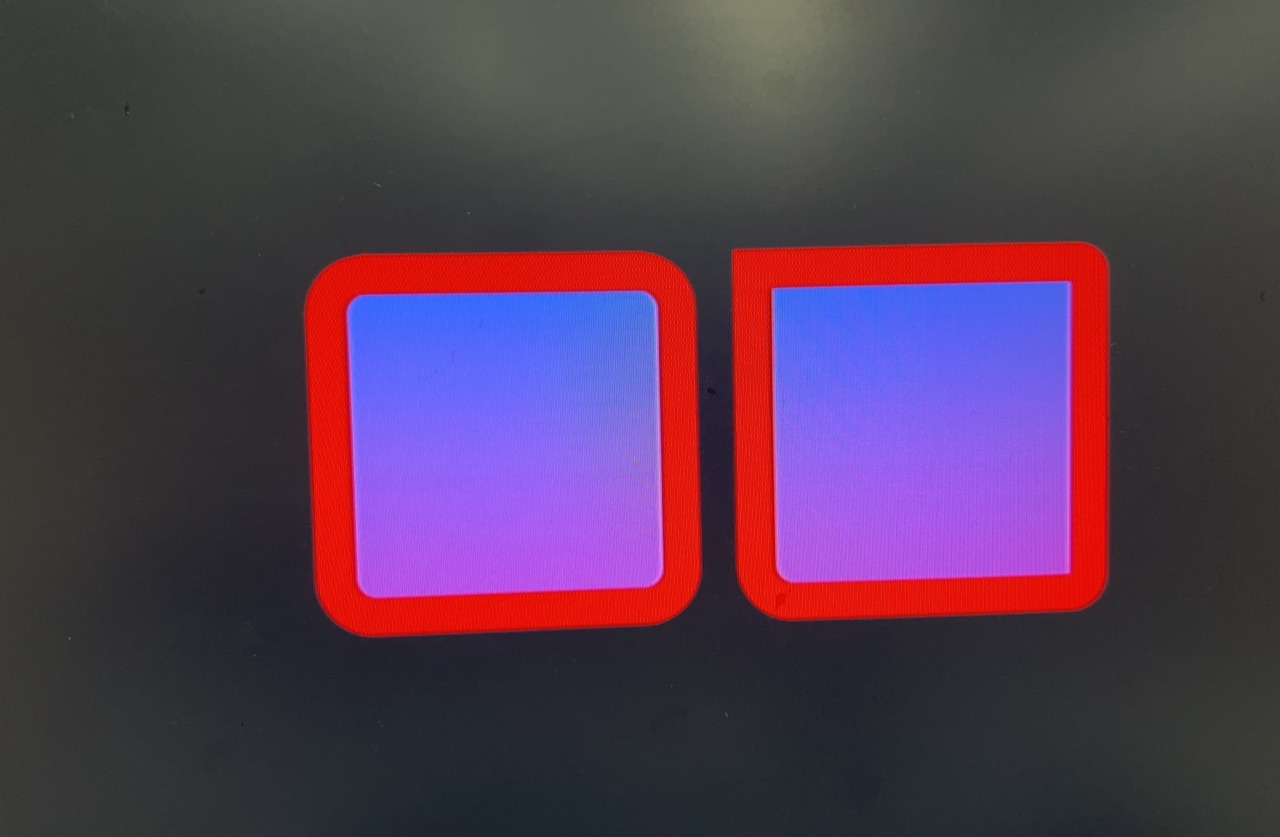
<View style={{ flex: 1, alignItems: 'center', justifyContent: 'center', flexDirection: 'row', }}> <IPNView style={{ width: 200, height: 200, alignItems: 'center', justifyContent: 'center', margin: 10, }} state_bg={{ theme: { normal: 'gradient://?color=' + encodeURIComponent('#667EFF,#667EFF') + '&orientation=top_bottom&shape=1&type=1&radius=20&frameWidth=20&frameColor=#ff0000', }, }}></IPNView> <IPNView style={{ width: 200, height: 200, alignItems: 'center', justifyContent: 'center', margin: 10, }} state_bg={{ theme: { normal: 'gradient://?color=' + encodeURIComponent('#667EFF,#BE52EB') + '&orientation=top_bottom&shape=0&type=0&cornerRadii=' + encodeURIComponent('0,0,5,5,10,10,20,20') + '&frameWidth=20&frameColor=#ff0000', }, }}></IPNView> </View>效果图:
4.3.3 二维码图
RN core中未加依赖react-native-qrcode-svg,APK添加一种私有的生成二维码图功能。
使用方法:
- 1、必须是私有组件
- 2、支持使用theme中imgKey属性
- 3、color(前景色)和bg(背景色)参数中“#”需要转码为“%23”。不传,默认color为黑色,bg为白色。
- 4、如二维码中间需显示logo图片,可在IPNView中加一个IPNImage图片方式(需控制大小)
参考用例:
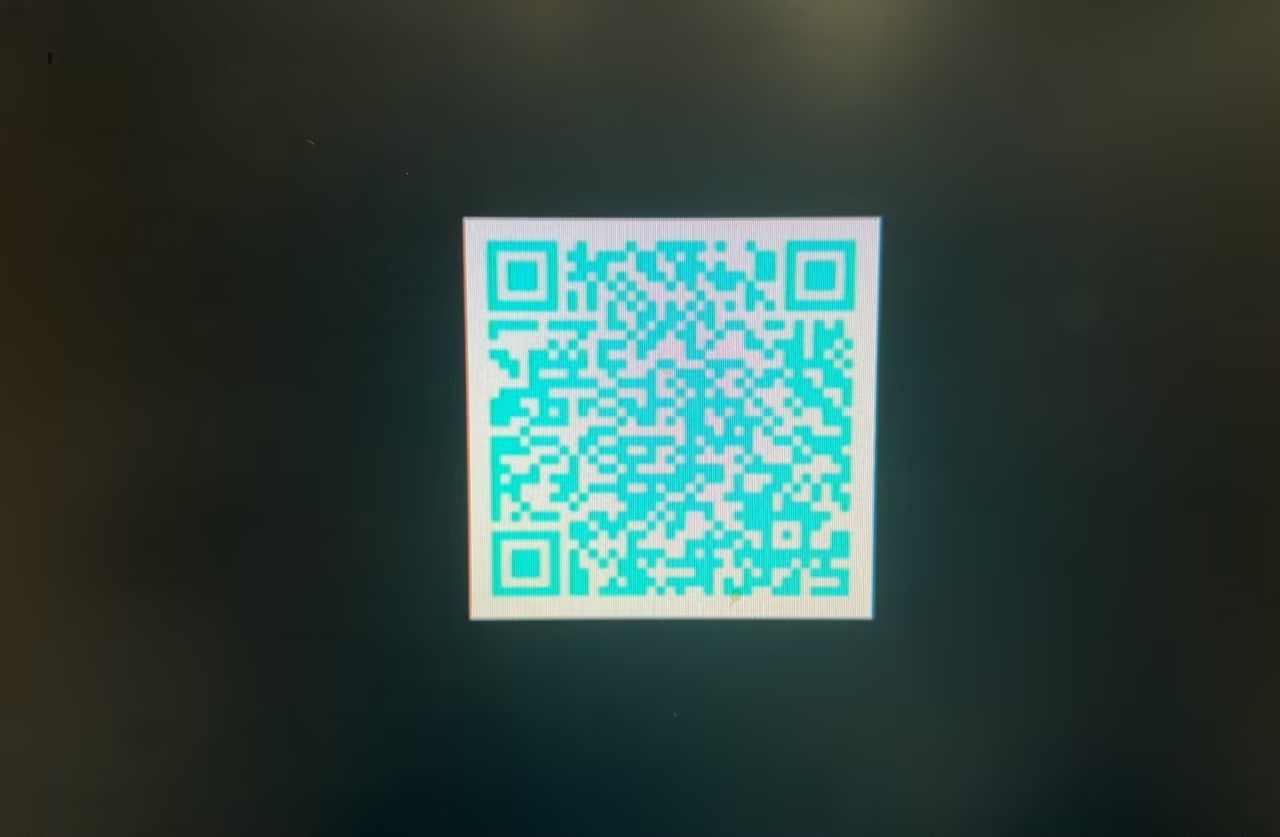
<IPNView style={{ width: 200, height: 200, alignItems: 'center', justifyContent: 'center', }} state_bg={{ theme: { normal: 'qr://?content=' +encodeURIComponent('https://ipanelcloud2.ipanel.cn:50443/s/smart_home/bindAccount/?user_id=111&address_id=222&room_id=333') +'&width=200&padding=1&color=%2300ffff&bg=%23ffffff' }, }}></IPNView>效果图
4.3.4 本地图片(file://)
通过 "file://" 路径方式访问设备中已经安装(下载)RN应用的本地文件。需用IPN组件来加载。 目前RN模块是单引擎机制,当多个RN应用都在运行时,都能收到消息。并且会执行render,如果RN切换应用时,通过require方式引入的本地图片的根目录是一个全局地址睡着RN应用切换到前台时会发送变化。存在刷新时,全局地址并非当前RN应用的路径导致本地图片不能显示问题。
获取本地图片根路径 asset_root:打开RN应用时,软终端APK会传参。打印如下:
// 在线运行: [2024-07-04 16:38:39.989] [07-04 16:38:39.049] 877313 [30117] I [ReactNativeJS] Running "tvsport" with {"initialProps":{"app_name":"tvsport","_target_":"health_center","bg_img":"bg_health_img","_asset_root_":"file:///data/user/0/com.ipanel.join.homed.stb/files/react_native/tvsport/v1.1.106/","device":"Spinbike","bundle_id":"tvsport"},"rootTag":231} //metro运行: [Mon Aug 19 2024 15:17:49.436] LOG Running "ReactNativeTvDemo" with {"initialProps":{"app_name":"ReactNativeTvDemo","_target_":"rn_app","devUrl":"192.168.30.134:8081"},"rootTag":1}拼接本地图片地址
图片统一配置 1、androidAssetFolderName:安卓本地资源目录名称固定 2、appFolderName:工程下assets目录全路径地址 3、fileList:require引入文件
const CONFIG = { androidAssetFolderName: 'drawable-mdpi/', //安卓本地资源目录名称 appFolderName: 'tvsport/assets/img/', //工程下assets目录全路径地址 fileList: { //用IPNImage本地file方式(必须统一引入用于打包,相对路径)。(建议require本地资源文件统一加到这里,再引用) 'user0.png': require('../assets/img/user0.png'), 'user1.png': require('../assets/img/user1.png'), 'setting0.png': require('../assets/img/setting0.png'), 'setting1.png': require('../assets/img/setting1.png'), 'person.png': require('../assets/img/person.png'), 'icon_bottom_logo.png': require('../assets/img/icon_bottom_logo.png'), 'up_small.png': require('../assets/img/up_small.png'), 'down_small.png': require('../assets/img/down_small.png'), 'icon_ship.png': require('../assets/img/icon_ship.png'), 'icon_skiprope.png': require('../assets/img/icon_skiprope.png'), 'icon_Spinbike.png': require('../assets/img/icon_Spinbike.png'), 'icon_scale.png': require('../assets/img/icon_scale.png'), 'icon_oximeter.png': require('../assets/img/icon_oximeter.png'), 'icon_hematometer.png': require('../assets/img/icon_hematometer.png'), 'icon_glucometer.png': require('../assets/img/icon_glucometer.png'), 'icon_thermometer.png': require('../assets/img/icon_thermometer.png'), 'icon_uricacidmeter.png': require('../assets/img/icon_uricacidmeter.png'), 'help0.png': require('../assets/img/help0.png'), 'help1.png': require('../assets/img/help1.png'), }, }拼接规则 1、metro走http方式,非metro走file方式 2、在bundle打包后文件名按目录名和文件名通过‘_’拼接而成 3、拼接后的文件名称统一转字母小写
//常用方法对象 const utils = { //获取本地资源路径 getAssetPath: function (_filename) { //devUrl也是打开应用时传进来的 let devUrl = global[APPNAME]['devUrl']; let path = ''; if (devUrl) { //metro环境 path = 'http://' + devUrl + '/' + CONFIG.appFolderName + _filename; } else { let filePrefix = CONFIG.appFolderName.replace(/\//g, '_'); //目录层级通过'_'拼接 let asset_root = global[APPNAME]['asset_root']; if (asset_root) { path = asset_root + CONFIG.androidAssetFolderName + (filePrefix + _filename).toLowerCase(); //名称转小写; } else { path = ''; } } console.log('getAssetPath---_filename=' + _filename + ',path=' + path); return {path: path, require: CONFIG.fileList[_filename]}; }, }实例引用
通过IPNView、IPNStateView、IPNImage标签来引用utils.getAssetPath(文件名),文件名带扩展名.
    import {View} from 'react-native';
    import React, {Component} from 'react';
    import IPNView from '../../../native/IPNView';

    const PARAMS = {devUrl: '', asset_root: ''};
    const CONFIG = {
        androidAssetFolderName: 'drawable-mdpi/', //安卓本地资源目录名称
        appFolderName: 'tvfullvideo/assets/img/', //工程下assets目录全路径地址
        fileList: {
            //用IPNImage本地file方式(必须统一引入用于打包)。(建议require本地资源文件统一加到这里,再引用)
            'user0.png': require('../../assets/img/user0.png'),
        },
    };
    const getAssetPath = (_filename) => {
        let devUrl = PARAMS['devUrl'];
        let path = '';
        if (devUrl) {
            //metro环境
            path = 'http://' + devUrl + '/' + CONFIG.appFolderName + _filename;
        } else {
            let filePrefix = CONFIG.appFolderName.replace(/\//g, '_'); //目录层级通过'_'拼接
            let asset_root = PARAMS['asset_root'];
            if (asset_root) {
                path = asset_root + CONFIG.androidAssetFolderName + (filePrefix + _filename).toLowerCase(); //名称转小写;
            } else {
                path = '';
            }
        }
        console.log('getAssetPath---_filename=' + _filename + ',path=' + path);
        return {path: path, require: CONFIG.fileList[_filename]};
    };

    export default class IPNViewFileImage extends Component {
        constructor(props) {
            console.log('IPNViewFileImage--props=', props);
            super(props);
            PARAMS['devUrl'] = props.devUrl || '';
            PARAMS['asset_root'] = props._asset_root_ || '';
            this.assetPath = getAssetPath('user0.png').path;
        }
        render() {
            return (
                <View
                    style={{
                    flex: 1,
                    alignItems: 'center',
                    justifyContent: 'center',
                    flexDirection: 'row',
                    }}>
                    <IPNView
                    state_bg={{
                        normal: this.assetPath,
                    }}
                    style={{
                        width: 32,
                        height: 32,
                    }}></IPNView>
                </View>
            );
        }
    }
4.3.5 分辨率
不同设备分辨率不同,开发过程中统一按1920x1080分辨率来进行比例换算,由于电视端高度可变,宽带相对固定。所以统一按分辨率宽带进行换算。
- 获取设备的宽高 每次进入RN应用分辨率可能发生变化,所以不能全局保存起来,实时获取javascript
//rn模块加载包之后没销毁不会再次load封装JS模块。导致该宽高不变,而每次加载引用后可能真实的window分辨率发送变化了 const globalConst = {}; globalConst.__defineGetter__('WIDTH', function () { return Dimensions.get('window').width; //实时获取 }); globalConst.__defineGetter__('HEIGHT', function () { return Dimensions.get('window').height; //实时获取 }); - 按设计图分辨率(19201080)宽度进行换算 目前电视软终端底层固定宽高是1280720及1.5像素比例。最终分辨率为1920*1080,所以选定按宽1920进行换算成实际设备分辨率的实际像素值。javascript
//常用方法对象
const utils = {
    /**
    * 不同分辨率尺寸(像素)换算(应用统一按1920尺寸)
    * @param {Number} size 当前使用尺寸
    * @param {Number} pageWidth 分辨率宽度
    * @returns
    */
    px: (size, pageWidth = 1920) => {
        let ratio = ((PixelRatio.get() / 1.5) * globalConst.WIDTH) / pageWidth;
        return Math.round(size * ratio);
    },
}

<View
    style={{
        width: utils.px(32),
        height: utils.px(32),
        backgroundColor: '#ff0000'
    }}
></View>
作业
- 题目 开发一个RN应用,显示一个二维码图,手机扫码后可以获取电视设备的相关信息(电视ID(deviceId)、应用ID(appId)和homed用户名)。
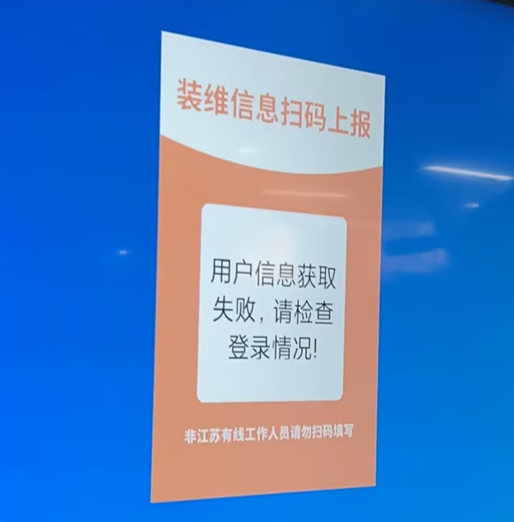
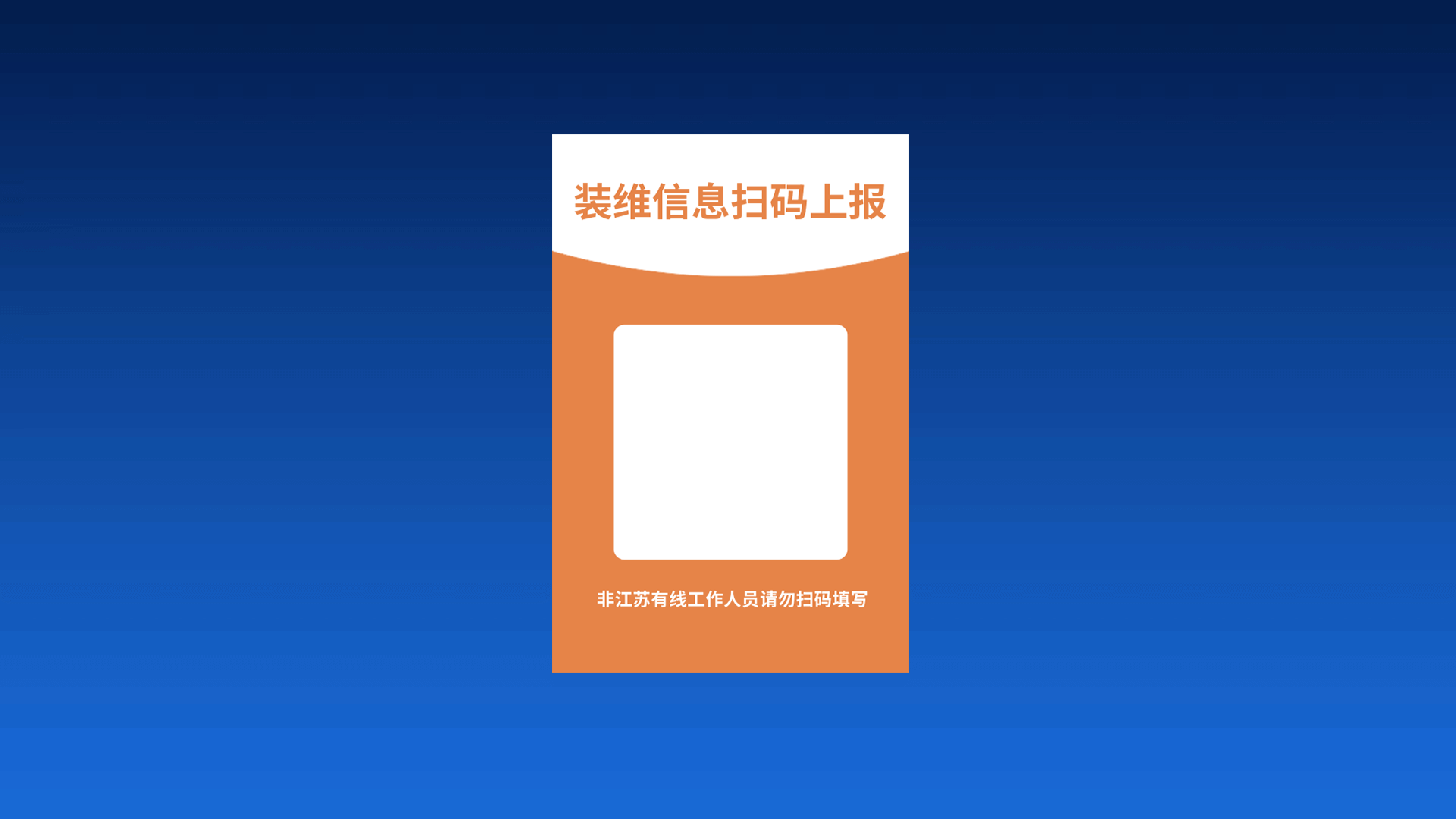
- 要求 1、背景图用file://方式 2、具体宽高和字体大小用比例运算 3、IPNBridge.homedLogin?.user_name(homed用户名)非空时,显示二维码;为空时,需要调用IPNBridge.getHomedLogin获取 4、getHomedLogin获取对象下homedLogin.user_name为空时,不显示二维码,二维码区域提示:“用户信息获取失败,请检查登录情况” 5、微信扫码结果可以显示:deviceId=xxxxxxxx&appId=xxxxxxxx&userName=xxx 6、提供背景图:供下载:
 7、效果如图: